Connect Kit (ConvertKit) to Phynite
Connect Kit and see your email numbers next to your traffic: open and click rates, every broadcast, and how your list is growing.
Connect Kit (formerly ConvertKit) and your email numbers show up next to your traffic numbers: open rates, click rates, every broadcast, and how your list is growing. One dashboard, both stories.
Why connect Kit
- See email and website performance side by side.
- Spot which emails actually send readers to your posts, not just which ones get opened.
- Find the subject lines and send times that consistently work for your readers.
- Skip the tab-switching between Kit and your analytics.
Before you start
- An active Kit account (free or paid, both work).
- A paid Phynite account.
Connect your account
Two ways in. Use whichever you happen to be looking at first.
From the Phynite dashboard
- Open Settings › Connections in your Phynite dashboard.
- Find Kit (ConvertKit) and click Connect.
- Sign in to Kit when prompted and click Authorize.
- You'll come back to Phynite with a confirmation. Head to Email marketing › Kit analytics to see your numbers.
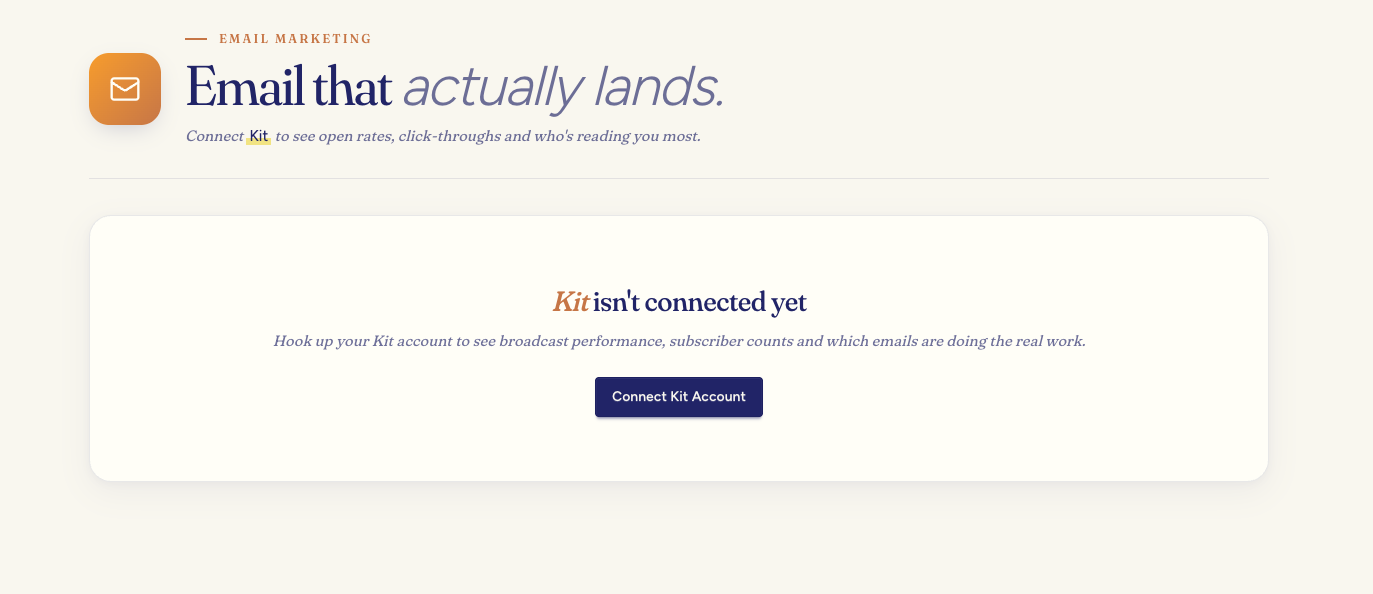
Not connected yet? Email marketing › Kit shows this prompt.
From the Kit App Store
- Open the Phynite Analytics app in the Kit App Store.
- Click Install and authorize the connection.
- You'll come back to Phynite, and your email analytics will be waiting at Email marketing › Kit analytics.
What you get
Email overview
At Email marketing › Kit analytics you'll see your average open rate and average click rate, your recipients added up across broadcasts, and your total broadcasts. Below that, your subscribers: your total, how many joined, how many unsubscribed, and your net growth over Kit's last 90 days.
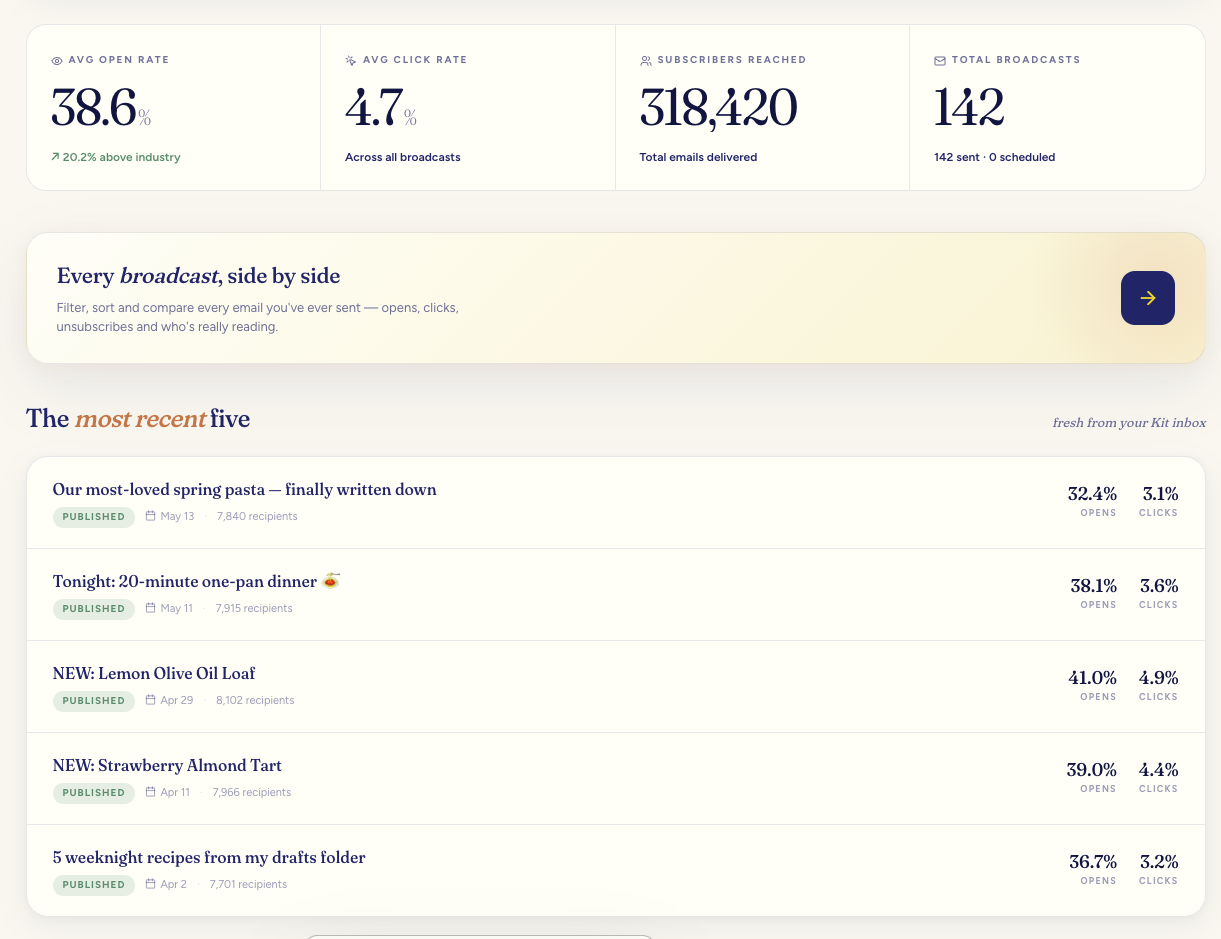
Kit analytics overview: the big picture of your email program.
Broadcasts, side by side
At Email marketing › Broadcasts every broadcast lines up with its subject, send date, status, opens, open rate, clicks, click rate, recipients, and unsubscribes. Sort by any of them. Filter by Published, Scheduled, or Draft.
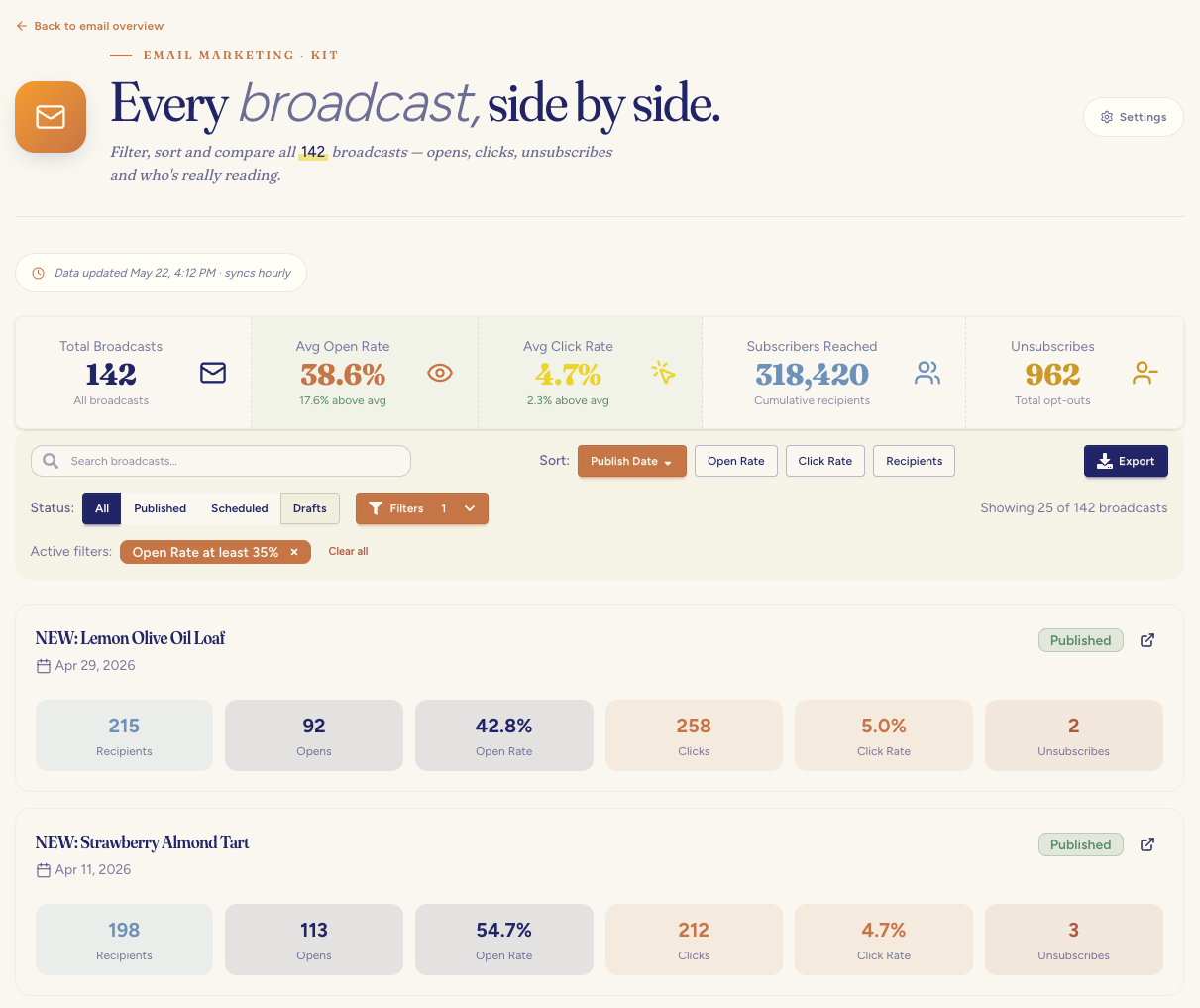
Every broadcast, side by side. Filter, sort, and drill in on any send.
Export anytime
On the Broadcasts page, filter to what you want and use Export › CSV. Useful for monthly reviews, sharing with a teammate, or feeding into another tool. The export includes subject lines, send dates, status, opens, clicks, open and click rates, recipients, and unsubscribes.
Reading the numbers
Where the numbers come from
Every per-email number (recipients, opens, clicks, rates, unsubscribes) is the one Kit reports for that email.
The average open and click rates at the top of your Kit page are Kit's own figures for your account over the last 90 days, so they match what Kit shows you. On the Broadcasts and Compare pages, where you pick the dates, the averages are worked out from the emails in that range, and the page says so.
Open rate
Opens divided by recipients. Opens include some automatic opens from Apple Mail, so read them as approximate. Clicks are the steadier number.
If an email was sent with open tracking off in Kit, its open rate shows as Off rather than 0%, and it's left out of your averages.
Click rate
Clicks divided by recipients. If click tracking was off for an email, its clicks show as Off, not 0.
Unsubscribes
How many readers left the list after each email. A sudden jump after one send is worth a look at what was different about it.
What Kit doesn't share
Kit doesn't give us bounces, spam-folder placement, or a delivered count for each email, so we don't show or guess at them.
Security and what Phynite can see
- Read-only: Phynite can read your broadcast stats and subscriber counts. We never send emails or change your list.
- OAuth 2.0 sign-in. We never see your Kit password.
- Your connection can expire. If it does, you'll see Expired in Settings and can reconnect in about thirty seconds.
Manage your connection
Check status any time at Settings › Connections. You'll see one of three states next to Kit:
- Connected: everything's working.
- Expired: click Reconnect and re-authorize. Takes about thirty seconds.
- Disconnected: Phynite no longer has access. Reconnect any time; nothing on the Kit side is affected.
When something gets stuck
"Kit connection failed" during setup
Almost always one of two things: you signed in to the wrong Kit account, or your Phynite subscription isn't active yet. Double-check both and try again. If it still won't connect, email support@phynitesolutions.com.
A new broadcast isn't showing yet
We pull from Kit about once an hour. If you just sent a broadcast, give it an hour. A broadcast still sending shows as "Still sending" and joins your averages once Kit marks it finished.
Frequently asked
Do I need a paid Kit account? No. Free works. Paid tiers expose more advanced reporting inside Kit, but Phynite's view works either way.
Can Phynite send emails through Kit? No. The connection is read-only. We can read your stats; we can't touch the list, send broadcasts, or change settings.
Can I connect more than one Kit account? One Kit account per Phynite site. If you run multiple sites in Phynite, each one can have its own Kit connection.
Is my data secure? Yes. OAuth 2.0 sign-in, HTTPS everywhere, and read-only access.
How often is the data refreshed? About once an hour.
See which posts each email drives
Kit can stamp every link in a broadcast with a campaign name taken from the broadcast itself. Once that's on, we can show you exactly which posts each email sent readers to, with real Google Analytics numbers for each email.
To turn it on in Kit:
- In Kit, open Settings → Analytics (where UTM tracking lives).
- Make sure UTM parameters are enabled for broadcasts.
- Enable the campaign parameter so it's filled automatically from each broadcast's name.
That's the whole job. From your next send onward, the email's traffic carries its own name, and Phynite can tie it back to the broadcast. You'll see it on the broadcast's page and in your email analytics. Sends from before the switch stay as they were; there's nothing to clean up.