Grant Phynite access to your Google Analytics
When automatic setup needs a hand: add our connection account to your Google Analytics property so your daily data feed can start. Two minutes, one time.
Phynite reads your traffic through a daily data feed from Google Analytics. Setting that feed up needs one permission Google reserves for property Administrators. If the Google account you connected can view your Analytics but doesn't administer it, we'll ask you (or whoever manages your Analytics) to add our connection account. Two minutes, one time, and we take it from there.
Who should do this
Whoever has Administrator access to your Google Analytics property. That's often you, but for many blogs it's a developer, a spouse who set things up years ago, or an older Google login. If you're not sure, the steps below will tell you: if you can't see the buttons described, you're signed in with an account that can't grant access, and you'll want to forward this article to the person who can.
Add our connection account
- Go to analytics.google.com and make sure you're signed in with the Google account that administers your Analytics. (Click your avatar in the top-right corner to check which account you're using. This is the step that trips most people up.)
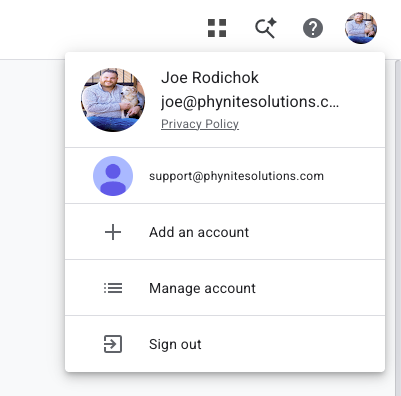
Check the top-right avatar first. The right property under the wrong account looks identical until the buttons are missing.
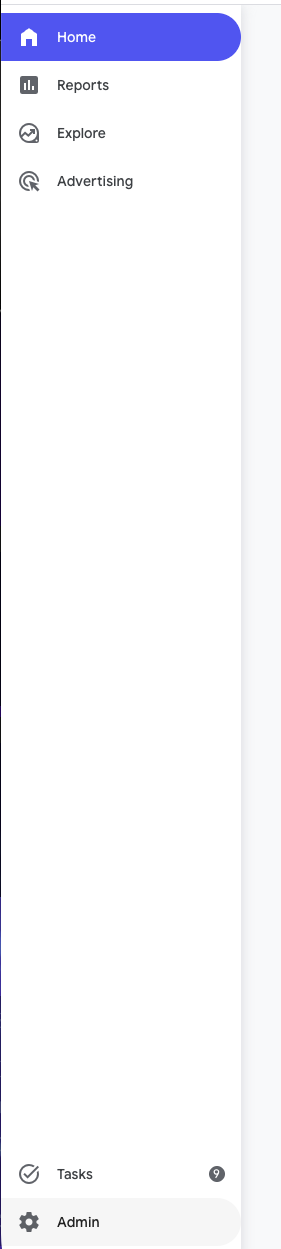
- Click the Admin gear in the bottom-left corner.
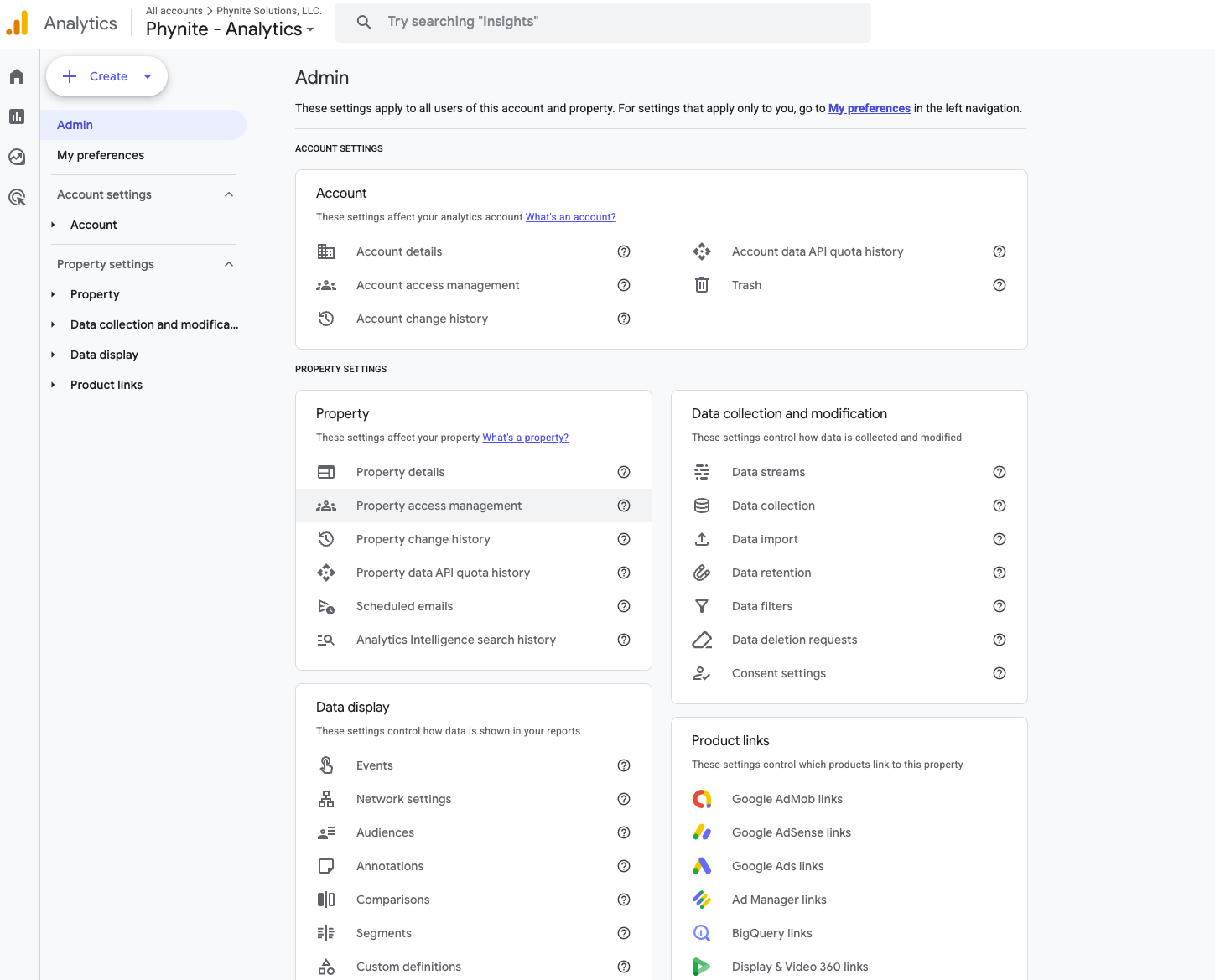
- In the Property column, click Property access management. (Make sure the property selected at the top is your website's property.)
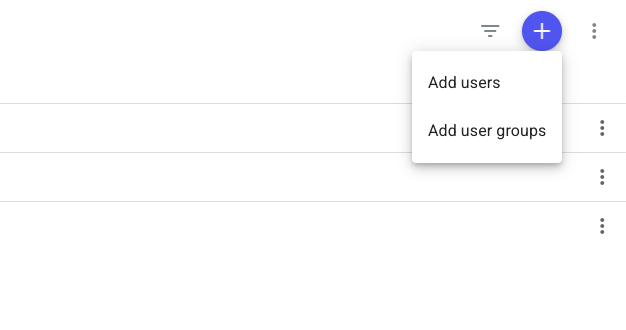
- Click the + button in the top-right corner, then Add users.
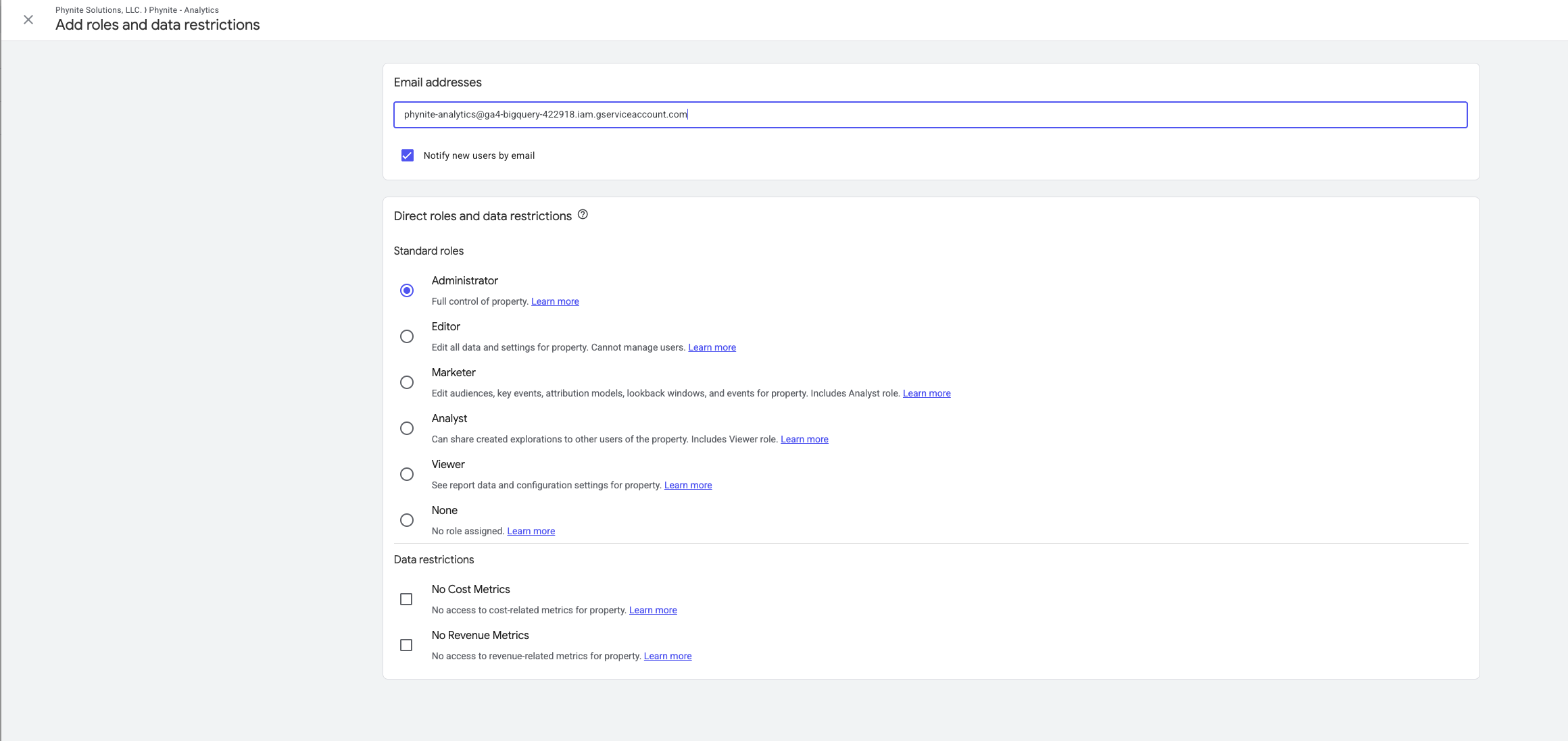
- Paste in our connection account:
phynite-analytics@ga4-bigquery-422918.iam.gserviceaccount.com- Under Direct roles and data restrictions, choose Administrator. (You can uncheck Notify new users by email. It's a robot, it doesn't read email.) Then click Add in the top-right corner.
What happens next
If you came here from the setup flow, head back and click "I've added it, try again" (or hit Retry on Settings, then Connections) and we'll finish the setup right away. If you've closed that tab, no problem: we also check on our side, and you can reply to any of our emails and we'll finish it for you. We read everything.
Common questions
Why Administrator? That feels like a lot.
Google requires the Administrator role to create the daily data feed (their rule, not ours). Day to day, Phynite only reads your data. We never change your Analytics settings, and you can see everything our account has access to right there in Property access management.
Is this safe?
The connection account belongs to Phynite's Google Cloud project and can't be signed into like a normal account. There's no inbox and no password to leak. It exists only to move your Analytics data into your dashboard.
Can I remove it later?
You can remove any user from Property access management at any time, but removing our connection account stops your daily data feed and your Phynite dashboard will stop updating. If you ever want to disconnect properly, do it from your Phynite settings instead so everything shuts down cleanly.
I added it. How do I know it worked?
Our account will appear in the Property access management list with the Administrator role. From there, we handle the rest and email you when your data is live.